
Performing a Manual Firmware Update of the Battery Cabinets
- The battery contactor must be disconnected ( > Disconnecting the Battery Contactor).
- The key file (.pem) and upgrade package (.zip) are on the same USB flash drive and in the same directory.
Procedure:
- Plug the USB flash drive into the left-hand USB 2.0 port on the LCU.
- Once plugged in, a popup window appears on the LCU screen with the message USB device recognized.
- Select the Cancel button.
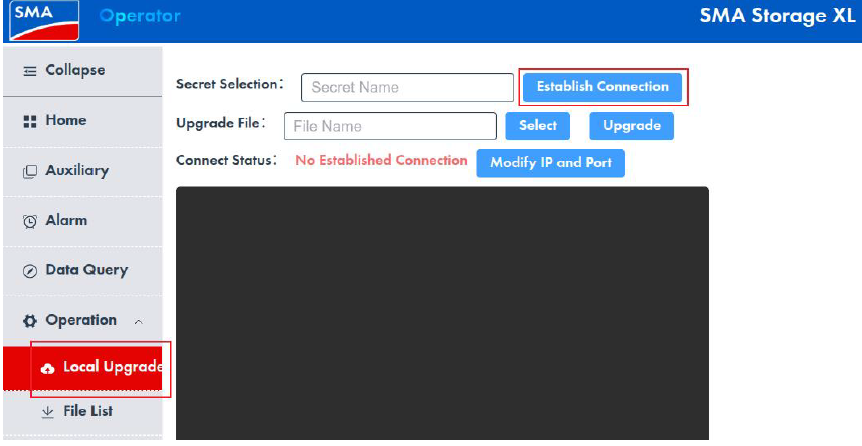
- On the left-hand side of the LCU screen, select Operation and then Local Upgrade.
- Select the Establish Connection button.
- In the file selection menu, navigate to the directory containing the upgrade files on the USB flash drive.
- Select the key file (.pem).
- Select the Upload button.
- Wait until the connection status Connection Successful is displayed.
- Select the upgrade file (.zip).
- Select the Upload button.
- Wait until the connection status Connection Successful is displayed.
- On the left-hand side of the LCU screen, select Operation and then Local Upgrade.
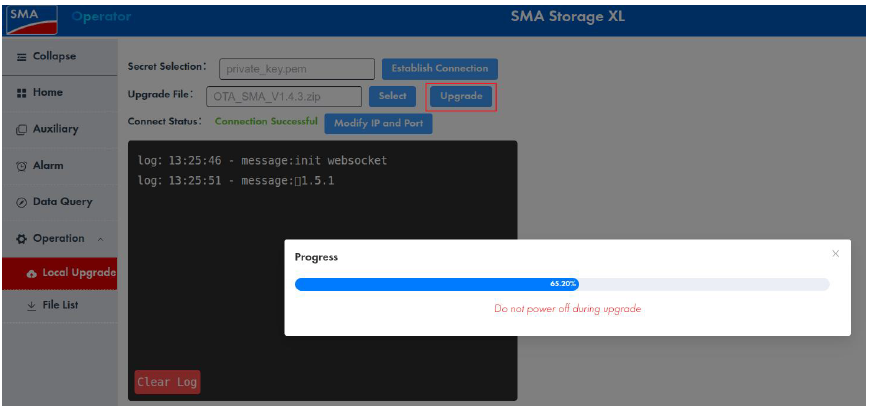
- Select the Upgrade button. The upgrade file transfer begins automatically.
- Wait until the message File Transfer Successful is displayed in the lower left-hand corner. The upgrade is then executed automatically.
Information: Do not interrupt the upgrade procedure. - Wait until the message Upgrade Successful is displayed in the lower left-hand corner.
- Upon completion of the upgrade procedure, the system restarts automatically, regardless of whether the upgrade was successful or not. If the system does not restart automatically, it must be restarted manually.
Also see: