
Introduction
Sunny Portal is an Internet portal which enables you to monitor and configure systems and to visualize system data.
In order to use Sunny Portal, you will need an SMA product that can record your system data and send it to Sunny Portal. Depending on the SMA product that sends the data, various functions are available in Sunny Portal.
The user interface of the SMA product (e.g. SMA Data Manager) and the user interface of Sunny Portal are uniform.
The number of functions and menus depends on whether you are on the local user interface of the product or in Sunny Portal.
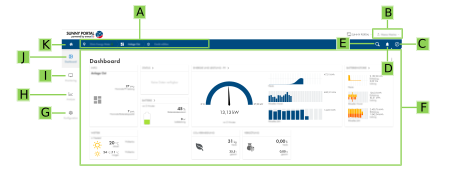
Design of the user interface (example)
|
Position |
Designation |
Description |
|---|---|---|
|
A |
Focus navigation |
Enables the navigation between the following levels:
|
|
B |
User settings |
Provides the following functions:
|
|
C |
System information |
Displays the following information:
|
|
D |
Notifications |
Display of higher-level notifications for events in the system |
|
E |
System search |
Search for systems |
|
F |
Content area |
Displays the dashboard or content of the selected menu |
|
G |
Configuration |
Offers different configuration options, depending on the scope of the connected devices and the selected level. |
H | Analysis | Offers detailed information on measured values of the system and of connected devices. The following functions are available for this purpose:
|
I | Monitoring | Displays depending on the selected device the following information on the current level and the superior levels:
|
|
J |
Dashboard |
Displays information and instantaneous values of the device or system currently selected. |
|
K |
Home |
Opens the user interface homepage |
In Sunny Portal, users have different user rights. The user rights determine which functions are available to the user in a system. Functions depending on user rights might not be shown due to missing authorization. The user account that was used to register a system gets administrator rights. The scope of functions can be changed by means of updates and purchase of additional licenses. The following user rights are available:
Administrator
Installer
User
Function | User rights in a system | ||
|---|---|---|---|
Administrator | Installer | User | |
Displaying Analysis Pro | ✓ | ✓ | − |
Displaying system properties | ✓ | ✓ | ✓ |
Configuring system properties | ✓ | ✓ | − |
Creating and configuring system groups | ✓ | − | − |
Displaying system monitoring | ✓ | ✓ | ✓ |
Configuring system monitoring | ✓ | ✓ | − |
Displaying configuration of system monitoring | ✓ | ✓ | − |
Displaying user rights | ✓ | − | − |
Configuring user rights | ✓ | − | − |
Configuring notifications | ✓ | ✓ | − |
Displaying notification configuration | ✓ | ✓ | − |
Displaying CO2 widget | ✓ | ✓ | ✓ |
Exporting data and parameters | ✓ | ✓ | − |
Displaying energy balance | ✓ | ✓ | ✓ |
Displaying energy balance widget | ✓ | ✓ | ✓ |
Displaying energy and power | ✓ | ✓ | ✓ |
Displaying event monitor | ✓ | ✓ | − |
Displaying yield widget | ✓ | ✓ | ✓ |
Entering device data manually (e.g. gas meter) | ✓ | ✓ | ✓ |
Change device properties | ✓ | ✓ | − |
Adding devices to systems | ✓ | ✓ | − |
Show annual comparison | ✓ | ✓ | ✓ |
Displaying grid management service widget | ✓ | ✓ | ✓ |
Importing parameters | ✓ | ✓ | − |
Configuring parameter values | ✓ | ✓ | − |
Displaying performance ratio widget | ✓ | ✓ | ✓ |
Displaying sensor widgets | ✓ | ✓ | ✓ |
Activating service access | ✓ | ✓ | − |
Configuring the SMA Smart Connected | ✓ | ✓ | − |
Configuring SMA SPOT | ✓ | ✓ | − |
Displaying status widget | ✓ | ✓ | ✓ |
Creating and configuring system sections | ✓ | ✓ | − |
Displaying load balance | ✓ | ✓ | ✓ |
Displaying inverter comparison | ✓ | ✓ | − |
Displaying weather widget | ✓ | ✓ | ✓ |
Additional information is available under the following link: User manual "SUNNY PORTAL powered by ennexOS" and at www.SMA-Solar.com.